
朋友在問SKOUT怎麼用電腦開播,索性就寫下這一篇,順便當記錄用,可可用的是雷電模擬器,官方下載網址是https://www.ldplayer.tw/。
My friend is asking how to use the computer to start the broadcast of SKOUT, so I simply wrote this one, and used it as a record by the way. Coco is use lDPlayer simulator . The official download site is https://www.ldplayer.tw/
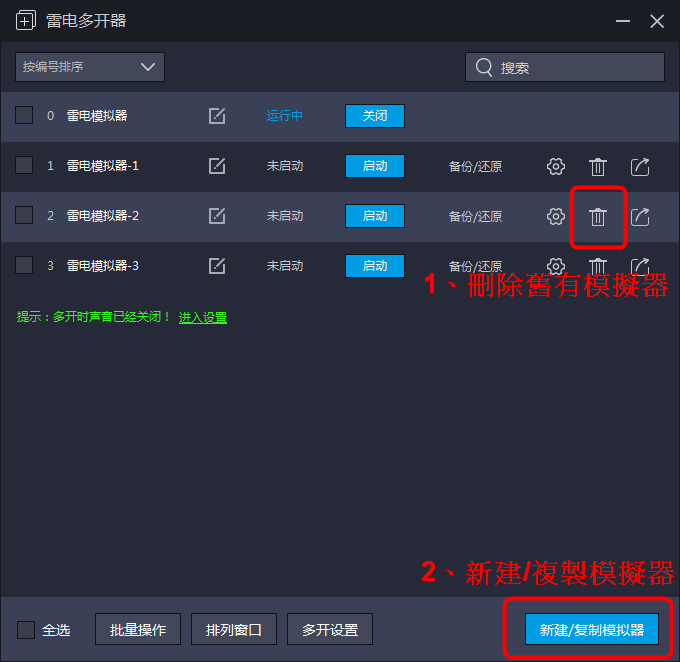
安裝好之後,首先是點2的創建新的模擬器,這裡因為可可已經有先創建好了,所以多了1步驟的刪除舊有模擬器。
After the installation is complete, the first step is to create a new emulator. Because Cocoa has already created it first, there is one more step to delete the old emulator.

進入新建/複製模擬器後,會有兩個選項,複製模擬器比較方便,但很多舊有模擬器的錯誤也會一併複製過來。可可會建議選新建模擬器,磁碟模式勾選小磁碟模式,比較不會硬碟無限擴大。
After entering the new/copy simulator, there will be two options. Copying the simulator is more convenient, but many errors of the old simulator will also be copied. The Coco recommends that you choose to create a new emulator, and check the small disk mode for the disk mode, which will not expand the hard disk infinitely.

創建中,大約等一分鐘左右。創建好了,我們點選齒輪進入系統設定。
It is being created. Wait for about a minute. Once created, we click the gear to enter the system settings.

進入系統設定後,總共有六個設置選項,SKOUT需要設定的有「性能設定」、「基本設置」、「遊戲設置」三種,「性能設置」的部分選自定義。
After entering the system settings, there are a total of six setting options. SKOUT needs to be set with “performance settings", “basic settings", and “game settings". The part of “performance settings" is optional.
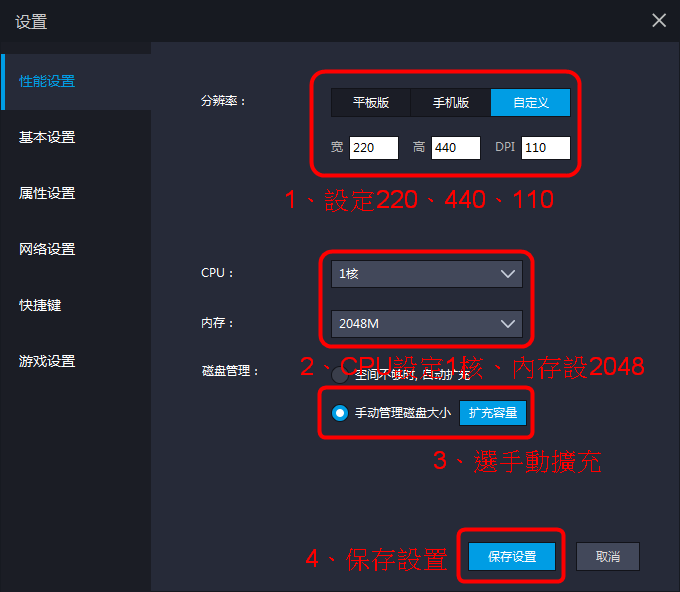
自訂義的話,可可習慣寬度設定220、高度設定440、DPI是手機字體大小,可可習慣設定110,CPU使用1核、內存2048M,這是可可測試較省電腦資源的設定。磁碟設定勾選手動管理,最後在按保存設置。
If you customize it, Cocoa is used to width setting 220, height setting 440, DPI is the phone font size, Cocoa custom setting 110, CPU uses 1 core, memory 2048M, this is a setting for Cocoa testing that saves computer resources. Check the manual management of the disk settings, and finally click to save the settings.

基本設置的地方,把自動旋轉螢幕選擇關閉。
For basic settings, turn off the automatic screen rotation option.

最後是遊戲設置,SKOUT是直播,所以畫質不用太好,通通都把打勾去除。
The last is the game settings, SKOUT is live broadcast, so the picture quality does not need to be too good, all the tick is removed.

設定好模擬器之後,我們來到手機頁面,模擬器本身是沒有PLAY商店的,所以我們要到系統應用裡面找谷歌安裝器來安裝PLAY商店。
After setting up the emulator, we came to the mobile page, the emulator itself does not have a PLAY store, so we have to find the Google installer in the system application to install the PLAY store.
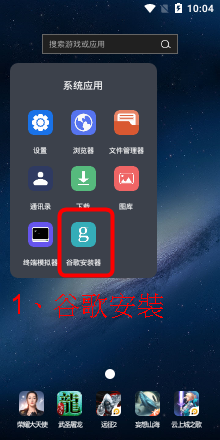
進入之後,有個谷歌安裝器。是專門用來安裝PLAY商店的。
After entering, there is a Google installer. It is specially used to install the PLAY store.

這個應該不用教,就是按下開始安裝而已。
just press to start the installation.
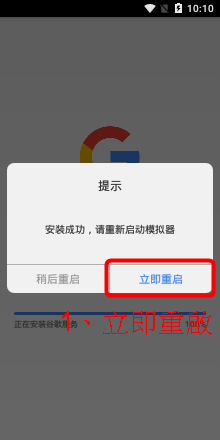
安裝完成後,選立即重啟。
After the installation is complete, choose to restart immediately.
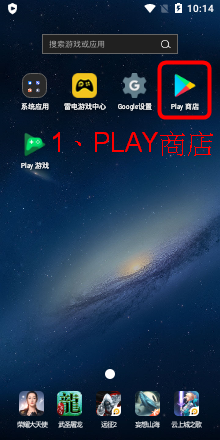
桌面上出現了PLAY商店,再來就是準備安裝SKOUT了。
The PLAY store appeared on the desktop, and then I was ready to install SKOUT.
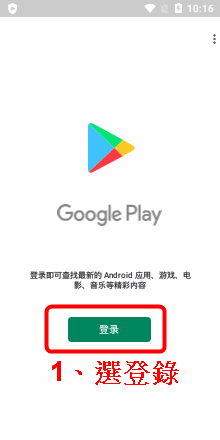
點入GOOGLE PLAY後,我們要先按登入,登入我們自己的GOOGLE帳號。
After clicking on GOOGLE PLAY, we must first press login to log in to our own GOOGLE account.
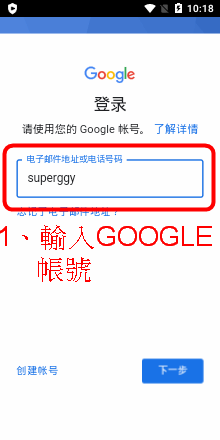
輸入自己的GOOGLE信箱帳號,按下一步後會要求你輸入密碼。
Enter your GOOGLE mailbox account, and you will be asked to enter your password after pressing the next step.
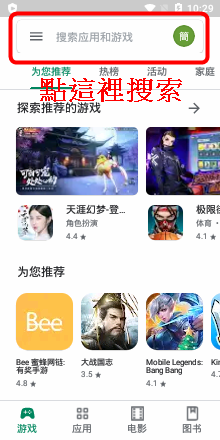
輸入完帳號密碼在上頭搜索SKOUT或者MEETME。
After entering the account password, search for SKOUT or MEETME at the top.
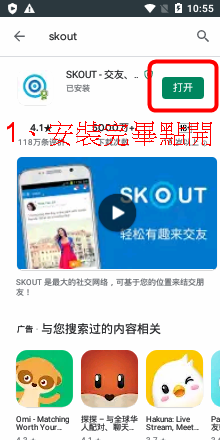
選擇安裝,安裝好後點選打開,最後輸入自己的SKOUT帳號、密碼。
Choose to install, click to open after installation, and finally enter your SKOUT account and password.

除了前面的設定,後面的操作差不多就是手機的操作。希望以上能幫到你。END
Except for the previous settings, the following operations are almost the phone operations. Hope the above can help you. END
 可可-12番的部落格COCO"S BLOG