可可最近搬到新住處,很多設備都要重新安裝,例如新宿舍就沒有提供網路,所以只能自己花錢申辦,有鑑於可可搬家的頻率較高,所以可可這次選擇較靈活的無線分享器TL-MR6400。
Coco recently moved to a new residence, and many equipment have to be reinstalled. For example, the new dormitory does not provide internet, so you can only apply for it yourself. In view of the high frequency of Cocoa moving, Cocoa chose a more flexible wireless router this time. TL-MR6400.

可可是中華電信的愛好者,原本想說到神腦國際買。誰知道神腦只能辦門號沒賣分享器。可可只好改到燦坤購買。門號月租699元綁約30個月,回饋金跟門號的押金相抵需要再貼800元左右(機子原價2300左右),前半年不用繳月租費。
Coco is a fan of Chunghwa Telecom, I originally wanted to buying from Shennao International. As a result, Shennao International could only apply for phone number. Cocoa had to change to Tsann Kuen to buy router. The monthly rent of the phone number is 25 USD for about 30 months, The phone number can be used to apply for the rebate against the router, and you only need to pay another 30 USD (The original price of the router is 80USD) The discount can also deduct the monthly rent. There is no monthly fee for the Six months.

盒子背面有介紹它的功能,簡單來說就是說裝上它,整個家裡32台設備都可以連線,並且支援SIM卡安裝。根據過去用無線網卡的經驗,就是插電型無線網卡。
There is an introduction to its function on the back of the box. Simply put, if you install it, 32 devices in the whole home can be connected, and it supports SIM card installation. According to the past experience with wireless network cards, it is a DC power supply wireless network card.
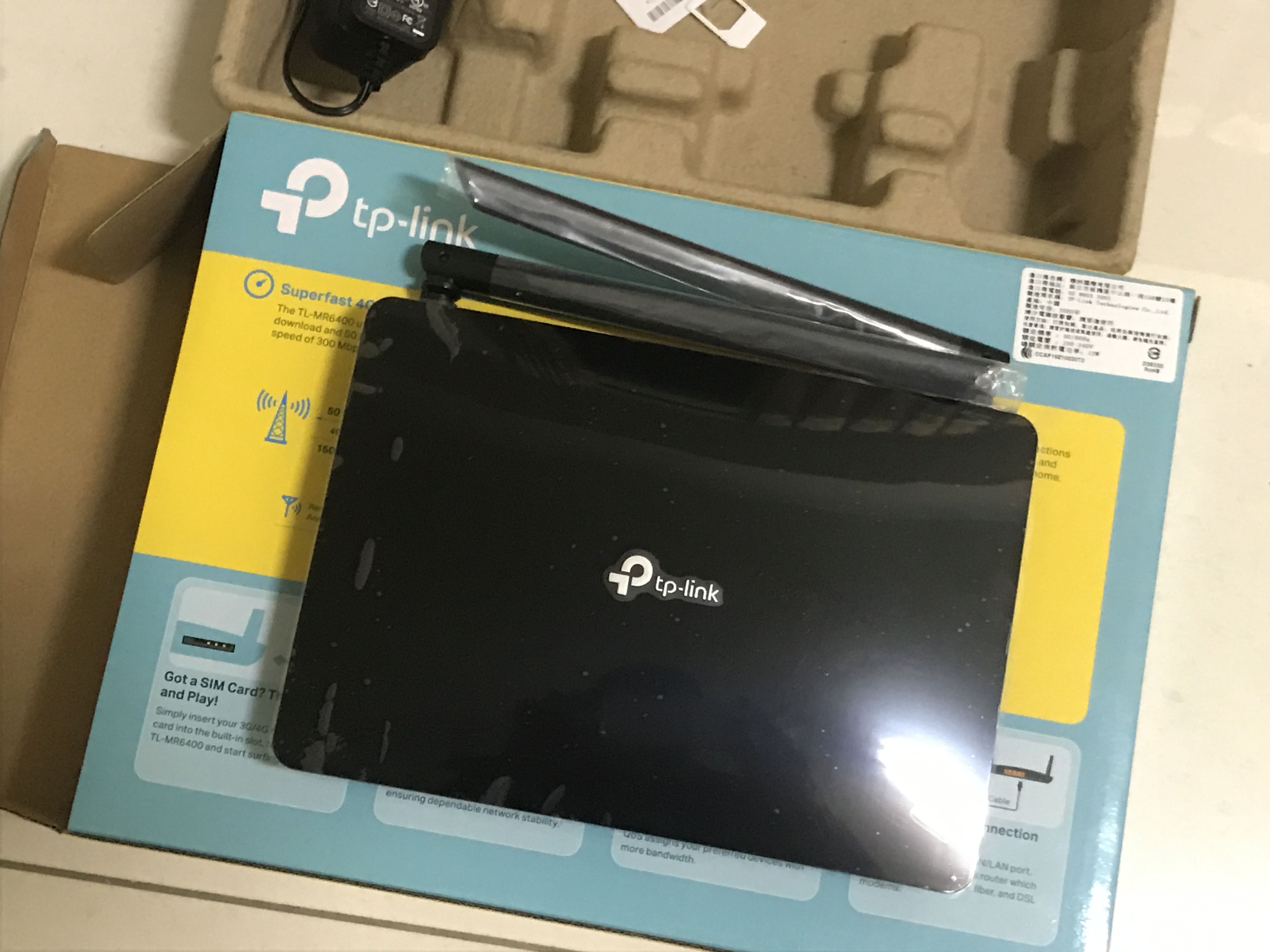
拆開後跟平常的網路分享器沒什麼不同,甚至說根本就長的一樣。
After being disassembled, it is no different from a normal Internet sharing device, or even looks the same at all.
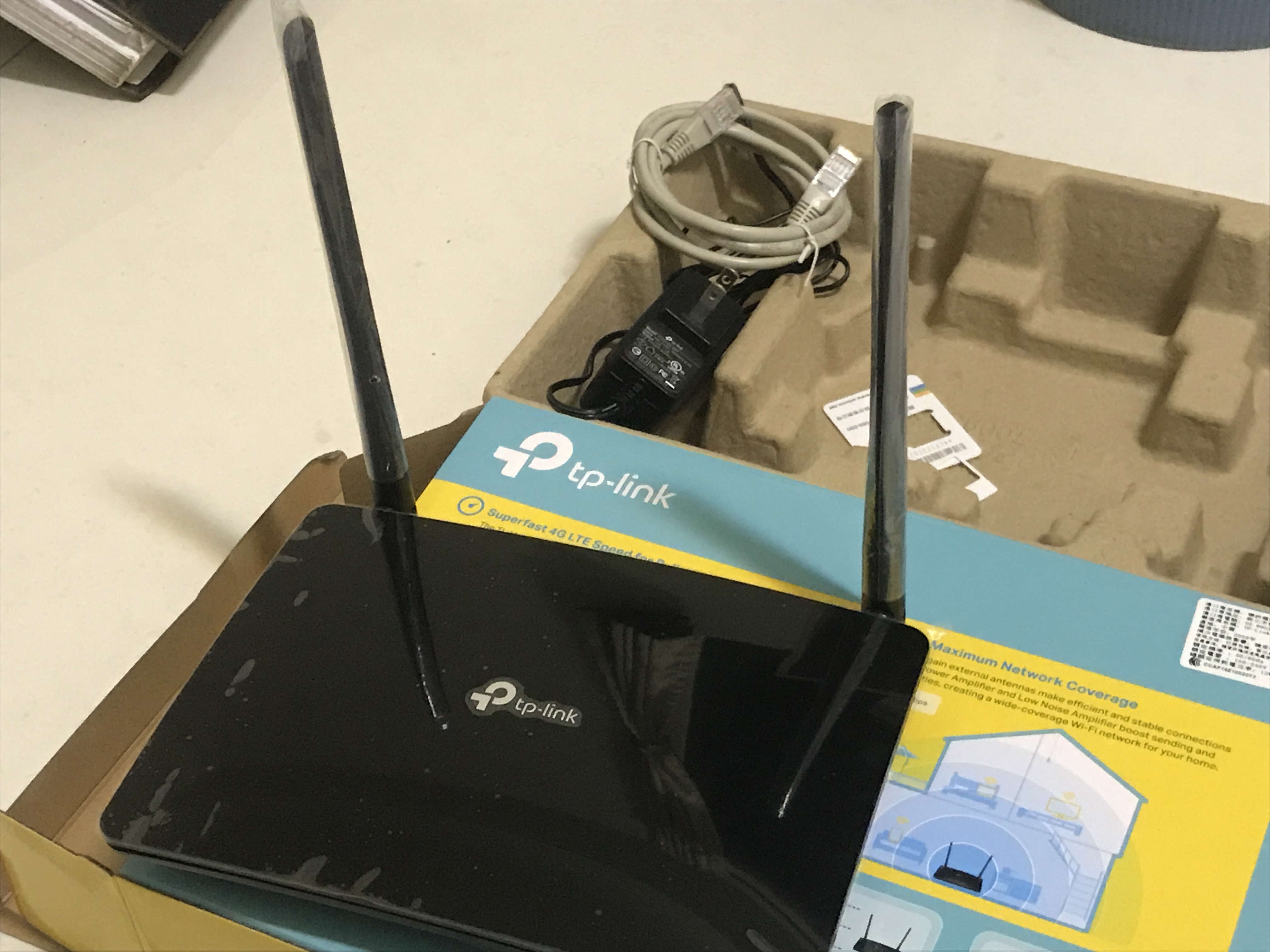
按照說明書指示,第一步驟,是把天線打直。
According to the instructions, the first step is to straighten the antenna.

再來是把SIM卡塞入背面的小洞,壓進去到底會卡住彈回來一點點。
Next, insert the SIM card into the small hole on the back, and press it in until it gets stuck and bounces back a little bit.
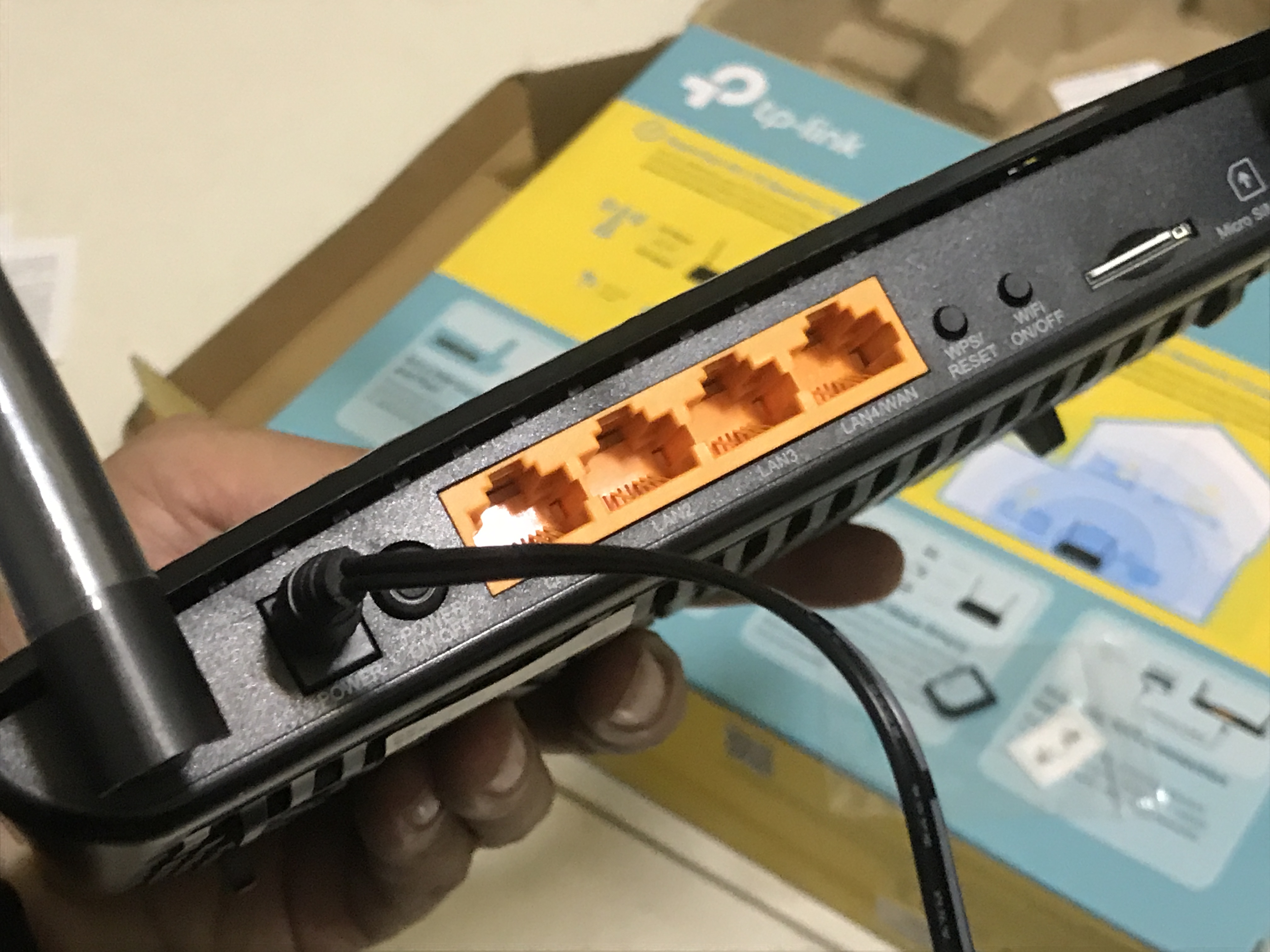
插上電源,電源線旁邊是電源開關,除了使用無線分享,還有四個黃色的格子應該是能使用傳統線路連接。
Plug in the power source. Next to the power cord is the power switch. In addition to wireless sharing, there are four yellow grids that should be able to connect using traditional lines.

開啟電源之後,等待個一分鐘,右邊的訊號燈會亮起來。
After turning on the power, wait one minute, and the signal light on the right will light up.

訊號燈亮起來之後,我們點開電腦右下角的無線網路選項,找到TP-LINK_360點選連線。
After the signal light is on, we click on the wireless network option in the lower right corner of the computer, find TP-LINK_360 and click Connect.

點選連線後,會彈跳出請你輸入密碼的畫面。請翻開分享器底部,紅色圈起來的地方就是密碼。
After you click Connect, a screen asking you to enter your password will pop up. Please Flip the bottom of the sharing device, the red circle is the password.

此時只能算是電腦與分享器的連線。請打開IE或者Google Chrome,網址輸入192.168.1.1進入分享器內部設定,原廠的設定帳號密碼都是admin如果是新手,就直接輸入admin吧。
At this time, it can only be regarded as the connection between the computer and the router. Please open IE or Google Chrome, enter 192.168.1.1 in the URL to enter the internal settings of the sharer. The original factory account and password are all admin. If you are a novice, just enter admin.

當進入系統後,你會看到左上角的地球,顯示驚嘆號。這表示對外的網路沒有連線,我們須要輸入SIM卡的密碼,讓他與外部連線。每間電信的預設密碼不相同,中華電信的是0000,台灣大哥大是1234,遠傳是8888,這裡記住,密碼錯誤3次會有鎖卡問題,千萬別亂猜。
When you enter the system, you will see the earth in the upper left corner with an exclamation point. This means that the external network is not connected, and we need to enter the SIM card password to allow him to connect to the outside world. The default passwords of each telecom are different. Chunghwa Telecom’s is 0000, Taiwan mobile is 1234, and the Far Eas Tone Telecommunications is 8888. Remember here, there will be card lock problems if the password is incorrect three times, so don’t guess randomly.
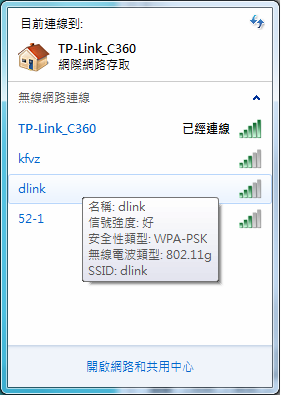
輸入完密碼後,系統就會自己進行連線。再檢查一下右下角的無線網路,看看是不是出現已經連線的訊息,出現以連線就算連線成功。END
After entering the password, the system will connect by itself. Check the wireless network in the lower right corner again to see if there is a connected message. If it appears, the connection will be successful. END
 可可-12番的部落格COCO"S BLOG
感謝您的分享!!
讚讚
不會,希望有幫到你
讚讚